
Who is this for: Salary administrators who see unexpected, missing, or incorrect data in the salary report and need to diagnose the cause.
How to use this article
Something looks wrong in your salary report. Before contacting support, work through the five scenarios below. Each one describes a different symptom, its most likely cause, and what to do about it. Start with the scenario that best matches what you are seeing.
- Scenario 1: An unexpected salary code is appearing
- Scenario 2: Hours are missing from the output
- Scenario 3: An employee is missing from the report entirely
- Scenario 4: The export is failing or producing an error
- Scenario 5: The numbers look wrong but you are not sure why
Scenario 1: An unexpected salary code is appearing
An employee has received hours on a salary code you cannot explain. The calculation ran without errors but the output contains something unexpected.
Most likely cause: A salary rule fired that you did not anticipate. Rules exist at three levels (the salary model, the individual employee, and the task) and all three always fire. An unexpected code usually means a rule at one of these levels matched the employee’s hours in a way you did not expect.
How to diagnose it:
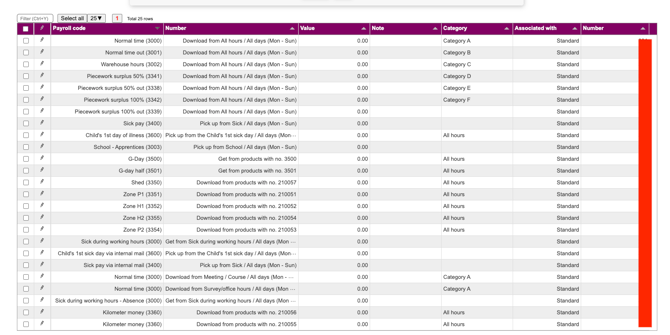
- Go to the salary model assigned to that employee and check whether any rule targets that salary code. Note the conditions — which days, which time period, which category filter.
- Check the individual rules on that employee’s profile. Do any of them target the unexpected salary code?
- Check the task the hours were registered on. Does it have a salary rule that targets that code?
- If the rule uses a category filter, trace the filter to understand which tasks it matches and confirm whether the employee’s hours were registered on one of those tasks.
For a full explanation of how the rule hierarchy works, see Understanding the salary rule hierarchy.
Start here: check which rule is sending hours to the unexpected code.
Scenario 2: Hours are missing from the output
- The salary report shows fewer hours than expected for an employee.
- Most likely causes:
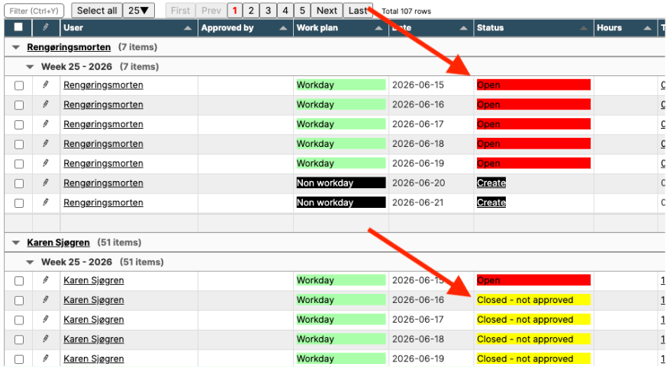
- The employee’s day sheet for the affected period is still open. Open day sheets are silently skipped.
- The salary model is set to the wrong hour source. If the model uses planned work but the employee registers actual hours, the actual hours are ignored entirely.
- A category filter on a rule is not matching the hours it should. If a rule depends on a category filter and the task does not have the right attributes set, the rule never fires and those hours produce zero output for that code.
- You are using Hour summaries instead of Salary data to validate. Hour summaries show how hours are categorised, not the final salary output. Always use Salary data for validation, it gives the complete picture.
How to diagnose it:
- Confirm which hours are missing. Which employee, which date, which task or registration type.
- Go to the Hours module and confirm the day sheet for that date is closed.
- Check the salary model’s hour source setting and confirm it matches how the employee registers time.
- Switch to Salary data in the report if you are not already using it and check again.
- If the missing hours are task-based, check the category filter configuration on the relevant rule.
Open day sheets are not included in the salary calculation
Scenario 3: An employee is missing from the report entirely
The salary report runs without errors but a specific employee does not appear in the output at all.
Most likely causes:
- The Calculate salary? checkbox is not ticked on the employee’s edit screen.
- No salary model has been assigned to the employee.
- The employee has no closed day sheets in the selected period.
- The team filter on the report is excluding this employee. Note: the team filter only affects the report view. The actual salary run processes all employees with a salary model assigned regardless of the filter.
How to diagnose it:
- Open the employee's profile and go to the Salary tab. Confirm the 'Calculate salary?' checkbox is enabled and a salary model is assigned.
- Check the team membership for that employee.
- Confirm the employee has at least one closed day sheet in the selected period.
For guidance on setting up an employee correctly, see Adding a new employee to the salary module.
Scenario 4: The export is failing or producing an error
The salary report looks correct but when you attempt to export, it fails or produces an error message.
Most likely cause: A salary rule references an element that no longer exists — a deleted work area, filter, or internal record. The system does not warn you when a referenced element is deleted. The failure only surfaces at the point of export.
What to do: Contact support and describe the error message you received. Do not attempt to identify or remove orphaned rules without guidance.
To prevent this from happening in future, avoid deleting work areas, filters, or internal records without first checking whether any salary rules depend on them. See Salary export and report types for more on export failures.
Scenario 5: The numbers look wrong but you are not sure why
The salary report ran without errors and all employees are present, but some numbers look incorrect.
Most likely causes:
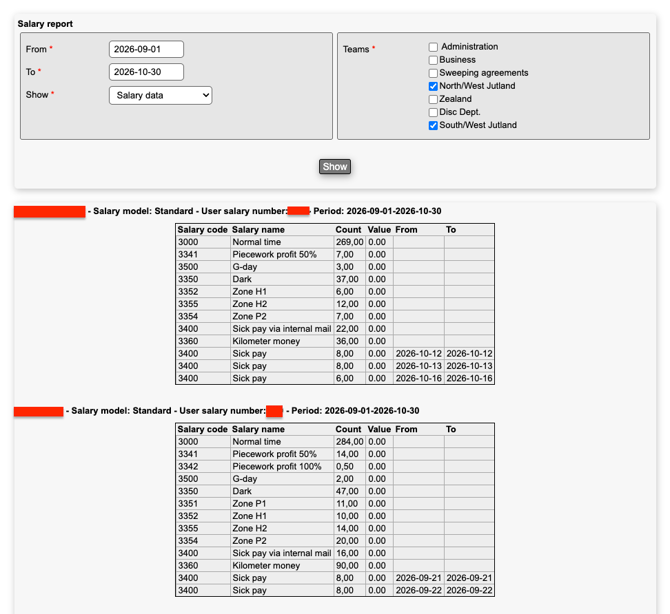
- A misread of the report format. Hours are displayed in decimal format. 155.50 means 155 hours and 30 minutes, not 155 and a half of something else. Confirm you are reading the numbers correctly before concluding something is wrong.
- A date confusion. If an employee has gaps in their registration, the report may show zero for those days. Cross-reference the salary output against the actual hour registrations for the period.
- A rule firing incorrectly. If the number is genuinely wrong rather than misread, trace back through the rule hierarchy as described in Scenario 1.
- The wrong period was selected. Confirm the start and end dates of the salary run match the period you intended.
How to diagnose it: Start by confirming you are reading the report correctly — decimal hours, correct dates, correct employee. Use Hour summaries alongside Salary data to cross-reference how the hours were categorised. If you cannot identify the cause, contact support with the specific employee, period, and salary code in question.
Hours are displayed in decimal format: 155.50 means 155 hours and 30 minutes. Always verify decimal values before concluding something is wrong
If none of these scenarios match
Contact support with as much of the following information as possible. Not all of it will be relevant in every case, but the more specific you can be, the faster the issue can be diagnosed:
- The employee name and salary code
- The salary period (start and end date)
- The salary code or codes where the unexpected result appears
- What you expected to see and what you actually see
- Any recent configuration changes made to salary rules, salary models, or system elements
Common mistakes to avoid
- Validating with a letter-suffix report. Switch to the Salary report.
- Exporting before investigating. If something looks wrong in the preview, stop and diagnose before exporting.
- Attempting to remove orphaned rules yourself. Contact support instead.
- Misreading decimal hours. 0.25 is 15 minutes, not 2.5 hours.