
The task card can be accessed from the search pages or from the list of tasks for a company or from the list of tasks for an equipment or from the planning module etc.
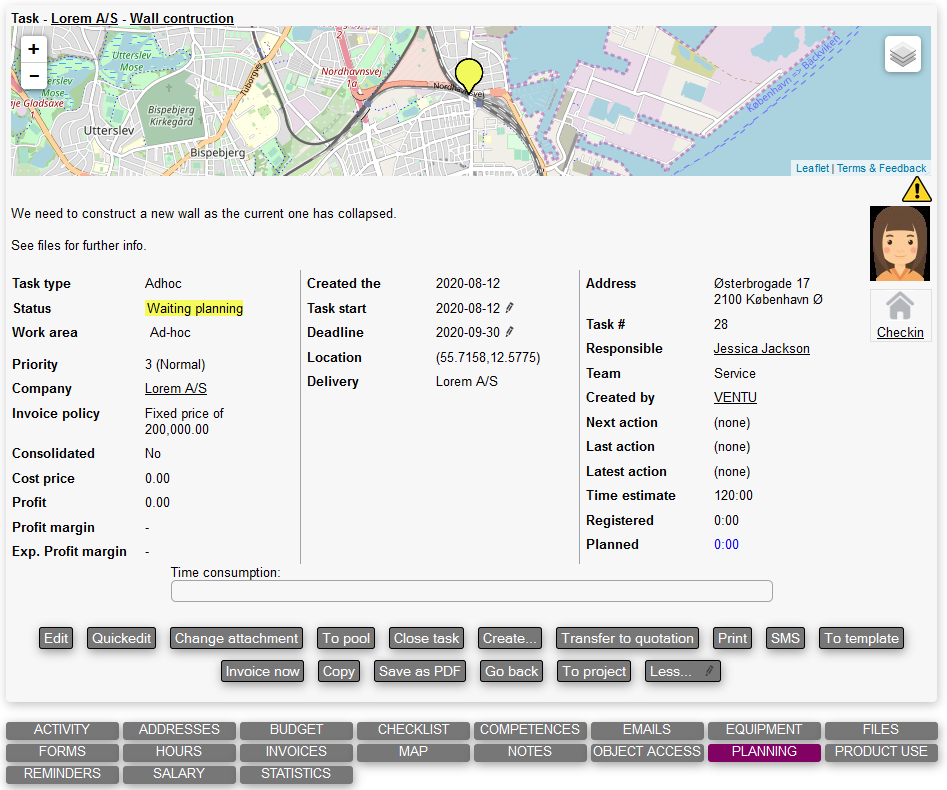
The map at the top may be hidden. The 3 columns with fields are configurable, by using a layout.
The buttons
On the frontpage of the task card we find various buttons.
-
Edit: To edit the task
-
Quickedit: To quickedit the task, you can only change the most commonly edited fields
-
Change attachment: Here you can change which company or unit the task belongs to, and change work area and mor Fed e; these fields are seperate for the normal editing because changing them may have far reaching consequences
-
To pool: Here you can send the task to a pool; a pool is just a collection of task
-
Close task: To close the task, if it is already closed then Reopen task or Undo close or Approve buttons may appear instead
-
Create...: From here you can create other objects that are connected to the task
-
Transfer to quotation: This will create a new quotation based on the task
-
Print: Print out the current task
-
SMS: Send an SMS from the current task
-
To template: Make a template out of the current task
-
Invoice now: Send an invoice to the company you are carrying out the task for
-
Copy: Make a copy of the current task; if the task is a project the subtasks will also be copied ; you will be asked which other data to copy (files, product use, equipment attachments), when copying invoiced product use the copies will be marked as awaiting.
-
Save as PDF: Save the task as a PDF-file
-
Go back: Go back to the previous page where you searched for tasks
-
To project: This allows you to assign the task to a project; for more on projects, please refer to the Project module
-
Send mail: Send a mail to the subcontractor
-
Pay accord: Pay out accord
-
Apply update filter: Apply an update filter to the task
-
Less/more: Show more/less of these buttons; click on the pencil inside the button to edit which buttons are always shown
Task tabs

Right under the user card we see the task tabs. These have different purposes:
-
Activity: Here is shown a chronological list of activities that have been done on the task
-
Addresses: A list of all the addresses attached to the task
-
Budget: The current budget of the task is displayed
-
Checklist: A list of all the checkpoints attached to the task
-
Competences: See what competences are required for this task
-
Emails: View a list of emails in relation to the task
-
Equipment: See which equipment are attached to the task
-
Files: See files related to this task
-
Forms: Fill out forms and see previously filled out ones
-
Hours: View any hours registered for the task
-
Invoices: View any invoice that have invoice lines that refer to the task
-
Map: Here you can draw on a map, f.ex. to illustrate areas that are relevant to the task
-
Notes: See and write notes regarding the task
-
Object access: See who has access or hasn't to the task
-
Planning: View any plans the task might have
-
Product use: View which products have been used while completing the task
-
Reminders: A list of all the reminders for the task
-
Salary: See salary related information
-
Statistics: Choose different mini reports to see statistics about this task