
Introducing Project Overview, all your projects on one shared timeline instead of one project at a time.
You see what is running, where there is room for more work, and where things collide. You can move work around directly on the timeline without opening a single project, which makes a strong planning tool across your organization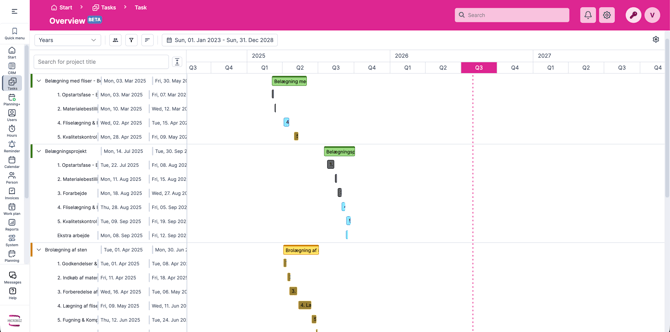
The project list, on the left
Your projects, one per row, with columns showing dates and other key values. Open a project to see its milestones, and open a milestone to see the tasks inside it.
The timeline, on the right
The same rows drawn as bars, placed by start date and deadline. A project bar spans its milestones, and a milestone bar spans its tasks.
The toolbar controls both halves at once, covering period, filters, sorting and columns, and it remembers your settings for next time.
The documentation and where to start
Read these in order if Project Overview is new to you. Each page links to the next.
|
Page |
What it covers |
|---|---|
|
Where to find the view, the two halves of the screen, how it adapts to your setup, and what it remembers |
|
|
Timeline level, period, teams, filters, sorting and your choice of columns |
|
|
The bars, the today line, tooltips, and how to read capacity off the timeline |
|
|
Breaking a project into phases, and getting the right tasks into them |
|
|
Moving work on the timeline, what follows along, and why nothing is saved until you say so |
|
|
Making one piece of work wait for another, with waiting time or overlap |
|
|
What the view does not do yet, and two things worth being deliberate about |