
How do you plan tasks per team?
To plan tasks per team, open the Per Task menu, select a team from the panel on the left side, and drag employees onto tasks and dates in the planning schedule.
Step 1: Select a team
Select a team from the Team panel on the left side of the screen:
Step 2: Use the planning schedule
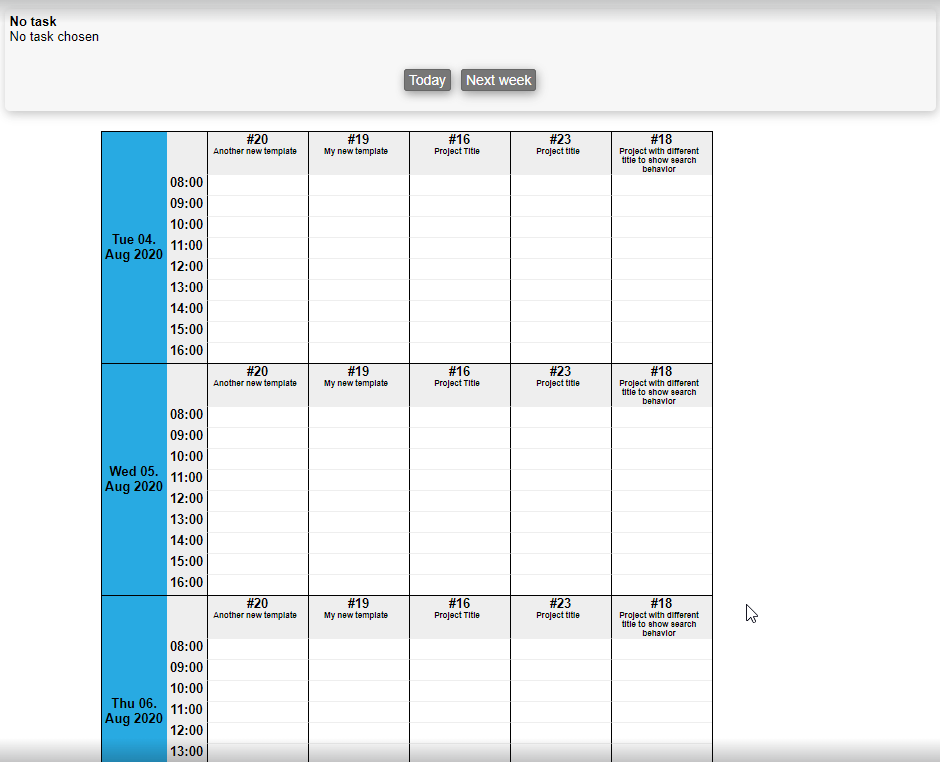
The planning schedule displays all tasks for the selected team, with indicators showing when time is already planned for each task.
To assign time to an employee, drag the employee from the employee list to the relevant task and date in the planning schedule.
You can interact with existing planned time blocks in the following ways:
- Select a task: Click a blue block once to select the corresponding task.
- Delete a planned block: Double-click a blue block to open the context menu, then select Remove production to delete it.
- Move a block: Drag the block to a different task, date, or time.
- Adjust duration: Drag the top or bottom edge of the block to change its start or end time.
If you click twice, a menu will be brought up, where you can choose "Remove production" in order to delete it. You can drag a box to another place; either to another task or to another date or time. You can also drag the top and bottom edge of a box to change its duration.