
Who is this for: Salary administrators running salary for a period.
Before you run salary, work through this checklist. Skipping any of these steps can result in incomplete salary data, duplicate entries, or export errors that are difficult to reverse.
1. Ensure all day sheets are closed and complete
Every employee whose hours should be included in the salary period must have a closed day sheet. Open day sheets are not included in the salary calculation.
Before closing, check that all registrations are complete. If an employee checked in but forgot to check out, the missing end time must be corrected first. Go to Hours module → Others Hours → Search, find the affected registration. If an employee has forgotten to close their day sheet, go to the Hours module (Edit) and locate the open registration. Coordinate with the employee to close it before proceeding.
Once registrations are complete, day sheets must be closed. You can reopen a day sheet that has already been closed by cliking on Reopen at the bottom of the sheet. If you need to reopen several at once, select them using the checkboxes in the search results and press Reopen from there. If you do not have the necessary permissions, contact your system administrator.
If your setup uses auto check-out, verify that it has run correctly for the period. See the User - General settings article if you need to know how to do it.
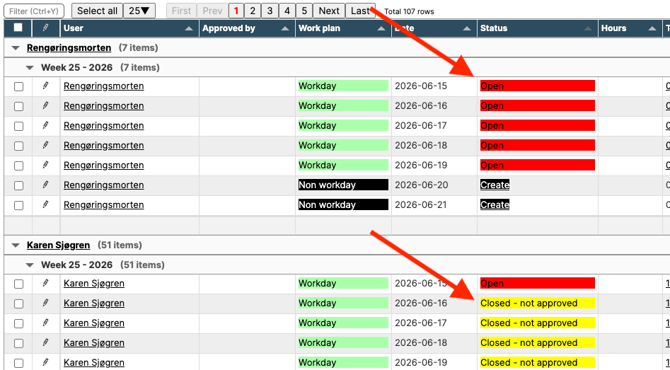
The screenshot below shows examples of both statuses:
Open — not included in salary calculation and Closed — included in salary calculation.
2. Correct any forgotten check-outs
If your process requires approval before salary, complete all approvals before proceeding.
Note: the salary module includes all closed hours regardless of approval status. Completing approvals is a process requirement, not a technical one.
For more on the approval workflow, see Approving hours.
3. You are now ready to run salary
Once the above steps are completed, proceed to preview and export salary for the period. For the full step-by-step guide, see First salary run in Microbizz, step by step.
Common mistakes to avoid
-
Running salary before all day sheets are closed and complete results in missing hours that are difficult to add retroactively.
-
Making configuration changes such as deleting work areas or filters without considering their effect on salary rules can cause the export to fail silently. If you have recently made configuration changes, verify your salary rules are intact before exporting.