
Who is this for: Salary administrators and team leaders adding a new employee to the salary module.
Overview
This article covers what to verify before an employee’s first salary run and what to do if something looks wrong. For a step-by-step guide to the fields on the employee edit screen, see Adding salary to a user.
Complete the setup before the employee’s first salary period. If an employee is not correctly set up when salary is run, they will either be missing from the output or calculated incorrectly.
Step 1: Set up the employee
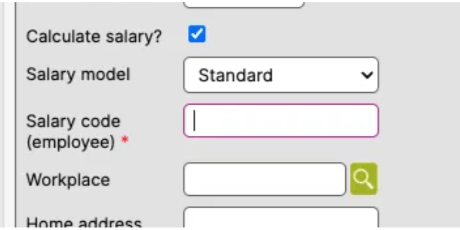
On the employee’s edit screen, you will find three fields in sequence:
- Calculate salary? — tick this checkbox first. The salary model and salary code fields appear immediately below.
- Salary model — select the model that matches this employee’s contract type.
- Salary code (employee) — enter the identifier your external salary system uses for this employee.
All three are on the main edit screen. Press Save when done.
For full details on each field, see Adding salary to a user.
Tick "Calculate Salary? first, then select the model that matches this employee’s contract and enter the identifier from your external salary system
Additional setup if needed
The following two options are not required for every employee. Apply them only when the employee’s situation calls for it.
Individual rules
If this employee has contract terms that differ from the salary model, a fixed monthly salary, a special allowance, or a different overtime rate, go to the employee’s profile, click the SALARY tab, and click New individual rule.
Individual rules fire on top of the model rules. They do not replace them. For guidance on how individual rules work, see Understanding the salary rule hierarchy.
One-time payment
For a bonus, expense reimbursement, or any other one-off payment, go to the SALARY tab and click New one-time salary. The payment will be included in the next salary run and will not recur automatically. For more details check the relevant section in the article Adding salary to a user.
Step 2: Verify before the first salary run
If the employee does not appear in the preview, check:
- Is the "Calculate salary" checkbox ticked on?
- Has a salary model been assigned?
- Are the employee’s day sheets closed for the period?
For further diagnostic guidance, see Why is my salary report not showing what I expect?
Common mistakes to avoid
Forgetting to tick the Calculate salary? checkbox. The employee will never appear in salary output until this is done.
Assigning the wrong salary model. Every salary run for that employee will produce incorrect output until it is corrected.
Leaving the salary code empty. The employee’s lines in the export file will have no identifier for the external salary system to match against.